

The short answer
To spot a phishing email, check four things before you act: who really sent it (the address, not the display name), where its links actually lead, whether it pushes you to act urgently, and whether it asks for a login, a payment or a file you were not expecting. If anything is off, verify through a channel you already trust.
On this page
- How can you tell if an email is phishing?
- What are the 10 signs of a phishing email?
- Are spelling mistakes still a sign of phishing?
- Phishing email examples: what do phishing emails look like?
- What should I do if I clicked a phishing link?
- How do I report a phishing email in the UK?
- How to spot phishing emails: a one-page checklist for staff
- How does phishing simulation reinforce training?
- Why Sovereign Secure
- Next step
How to spot phishing emails comes down to four checks before you act: who really sent the message, where its links really go, whether it is rushing you, and what it wants you to do. Most phishing fails at least one of those tests. When something feels off, stop and verify through a channel you already trust, such as a known phone number or the organisation’s own website typed into your browser.
This guide is for staff, not specialists. For a definition of phishing and its main types, see what is a phishing attack.
How can you tell if an email is phishing?
The quickest way to identify phishing emails is to ask four questions of any message that wants you to act:
| Check | What to look at | Red flag |
|---|---|---|
| Who sent it? | The full email address, not just the display name | A free email account, a lookalike domain or a reply-to address that differs |
| Where does it go? | The real destination of every link and QR code | A domain that does not belong to the sender |
| Why now? | The tone and deadline | Threats, countdowns, “final notice” or secrecy |
| What does it want? | The action requested | A password, a code, a payment, new bank details or an unexpected file |
One red flag is a reason to slow down. Two or more, and you should treat the email as phishing until proven otherwise.
What are the 10 signs of a phishing email?
1. The sender’s address does not match the name
Display names cost nothing to fake. “IT Service Desk” or your chief executive’s name can sit on top of any address. Check the full address and look for lookalike domains: “rn” in place of “m”, a zero in place of the letter “o”, an extra word such as “-payments”, or a different ending such as .com instead of .co.uk. Many email systems also add a banner such as “External sender”; treat it seriously when the message claims to be internal.
2. The request is unexpected or out of character
A supplier you rarely hear from, a director who never emails you, or a familiar contact asking for something unusual. Phishing works by borrowing trust, so the question is not “do I know this name?” but “would this person really ask me this, this way?”
3. It creates urgency, fear or secrecy
“Your account will be suspended in 24 hours.” “Pay today to avoid a fine.” “Keep this confidential until the deal is announced.” Pressure is designed to stop you thinking. Genuine organisations rarely mind you taking ten minutes to check.
4. Links do not go where they claim
Hover over a link on a computer, or press and hold on a phone, to see the real address before you click. To find the real domain, take the text just before the first single slash and read it from the right. In login.yourbank.co.uk.verify-now.example/secure, the real domain is verify-now.example, not your bank. Be wary of link shorteners and of any email that leads straight to a login page.
5. It asks for a password, a code or a sign-in approval
Your IT team will not ask for your password by email, and nobody legitimate needs a one-time code you have been sent. An unexpected multi-factor authentication (MFA) prompt is a warning in itself: it can mean someone already has your password. Deny it and report it.
6. It carries an attachment you did not expect
Be especially careful with HTML files, password-protected archives, “voicemail” attachments and Office documents that ask you to click “Enable content”. An invoice from a supplier you do not use is a classic lure.
7. It contains a QR code
A QR code moves the link from your work computer, with its security filters, to your phone, which may have none. Emails asking you to scan a code to “re-enrol MFA” or “view a document” are a common form of quishing.
8. It changes payment or bank details
An email announcing new bank details for a supplier, or asking for an urgent transfer, should never be acted on by email alone. Call the supplier on a number you already hold, not one in the email. This is the core of business email compromise, which often comes from a genuine but compromised mailbox.
9. It asks you to phone a number
Some phishing carries no link at all. It reports a subscription renewal or a suspicious payment and gives a number to call, where a convincing caller talks you into installing remote access software or sharing details. This is callback phishing, a blend of email and vishing.
10. The details do not fit, or the offer is too good
A generic greeting such as “Dear customer”, an account with a service you do not use, a prize you never entered or a refund you were not expecting. Targeted spear phishing can use your real name, job title and current projects, so correct details do not make an email safe, but wrong ones are a strong warning.
Are spelling mistakes still a sign of phishing?
Not reliably. Generative AI writes fluent, well-formatted lures in any style, and attackers copy genuine logos and email layouts. Some older advice no longer holds:
| Old advice | What to check now |
|---|---|
| Look for bad spelling and grammar | The sender, the links and the request |
| Look for the padlock in the address bar | The domain; phishing sites use HTTPS too |
| Only trust emails from people you know | Whether the request is normal for that person, because accounts get taken over |
Phishing email examples: what do phishing emails look like?
These five phishing email examples are typical lures, recreated with invented names and domains rather than copied from real attacks. The table sums them up, and each one is annotated below with the warning signs to look for.
| Lure | What it says | The giveaways |
|---|---|---|
| Password expiry | “Your Microsoft 365 password expires today. Keep your current password here.” | Sender domain is neither Microsoft nor your company; link leads to a different domain; deadline pressure |
| Supplier bank change | “Please update our bank details before paying this month’s invoice.” | Reply-to differs from the sender; a domain one letter off; payment change by email |
| Shared document | “A contract has been shared with you. Sign in to view.” | Not expected; sign-in page on a domain that is not your company’s; vague document name |
| MFA re-enrolment | “Scan this QR code to keep access to your account.” | A QR code instead of a link; IT does not normally ask this; urgency |
| Callback invoice | “Your annual subscription has renewed. Call us within 24 hours to cancel.” | A service you do not use; a phone number instead of a link; pressure to call |
Example 1: the password expiry email
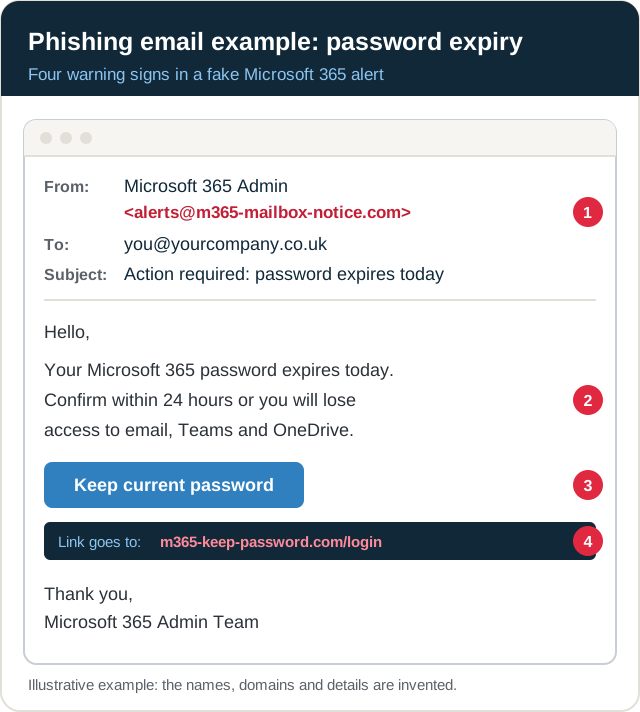
- The sender’s domain. The display name says Microsoft 365, but the address belongs to neither Microsoft nor your company.
- A same-day deadline. “Within 24 hours” is there to stop you checking.
- A request that makes no sense. Nobody keeps a password by clicking a button, and your IT team will not ask you to confirm yours by email.
- The real link. Hovering over the button shows a sign-in page on an unrelated domain.
Example 2: the supplier bank change email
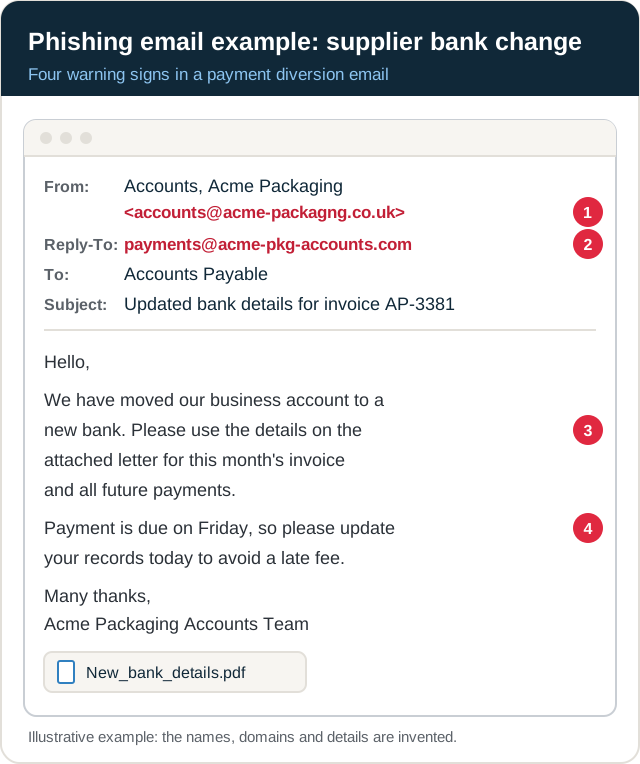
- A domain one letter off. “packagng” is missing an “i”, which is easy to miss on a phone.
- A different reply-to address. Your reply would go to an outside domain, not to the supplier.
- New bank details by email. Never act on this without calling the supplier on a number you already hold.
- Pressure tied to a real deadline. The due date makes any delay feel like your fault.
Example 3: the shared document email
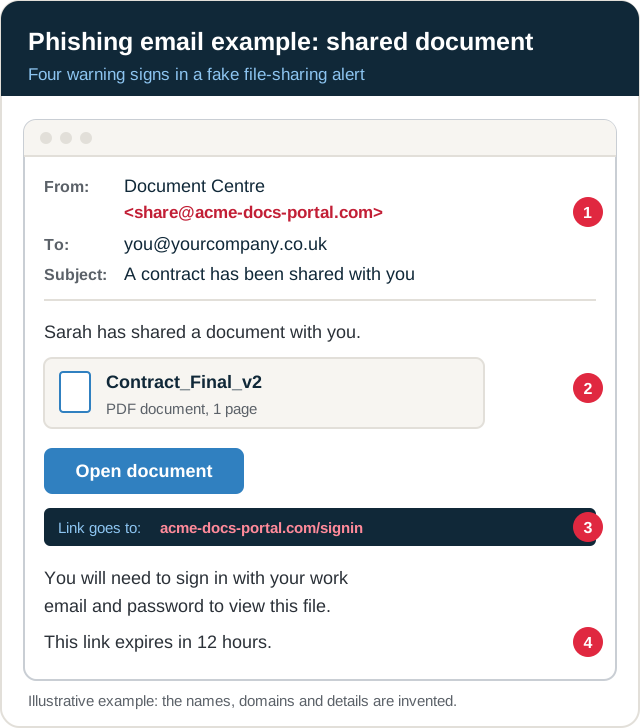
- An unexpected sender. A sharing notice from a service your organisation does not use, on a domain that is not your company’s.
- A vague file name. No project, client or reference you recognise.
- A sign-in page on the wrong domain. A genuine shared file opens in the service your organisation already uses, not on an unfamiliar site that asks for your password.
- A short expiry. “Expires in 12 hours” pushes you to open it before you ask anyone.
Example 4: the QR code MFA re-enrolment email
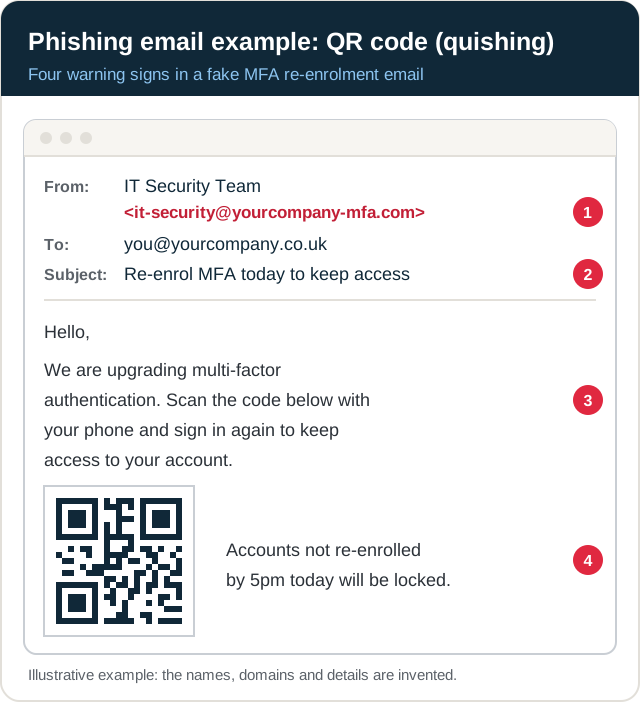
- A look-alike of your own domain. “yourcompany-mfa.com” contains your company’s name but is not its domain.
- A same-day deadline, repeated as a threat to lock your account.
- An unusual request. IT teams do not normally ask you to re-enrol MFA by scanning a code from an email.
- A QR code instead of a link. It moves you to your phone, away from your work computer’s link checks.
Example 5: the callback invoice email
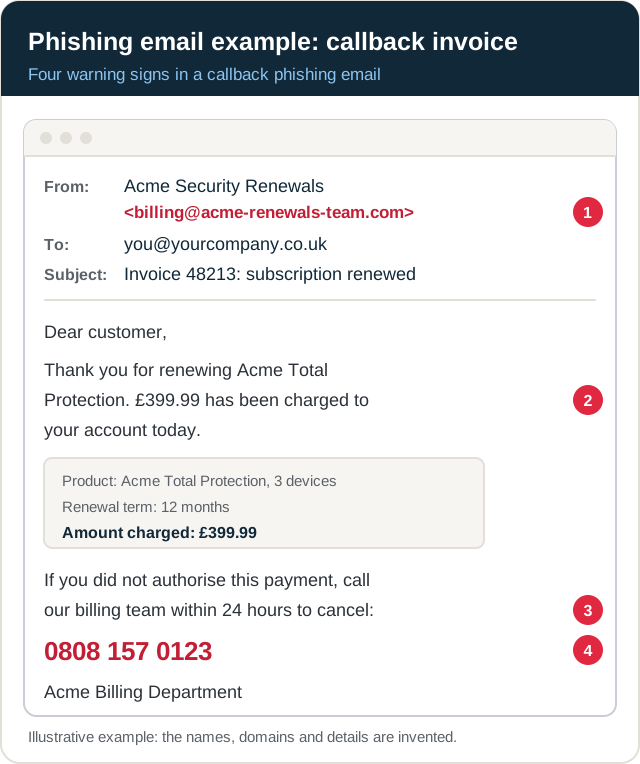
- A product nobody bought. The renewal is for a service your organisation does not use.
- An unexpected charge. A large amount is meant to make you react, not check.
- A 24-hour deadline to cancel.
- A phone number instead of a link. The caller will try to talk you into installing remote access software or sharing card details. Check your statement or the company’s real website instead of calling the number in the email.
What should I do if I clicked a phishing link?
Act quickly and tell someone. Reporting within minutes makes far more difference than how the click happened.
- Stop. Close the page and do not enter anything else.
- Report it now to IT or security, saying what you clicked, what you entered and when. Do not delete the email; it helps the investigation.
- If you typed a password, change it from a trusted device by going to the site directly, and change it anywhere else you reused it. IT should sign you out of all sessions and check your MFA methods and mailbox rules, because attackers often add forwarding rules.
- If you opened a file or installed something, leave the device on and follow IT’s instructions; they may ask you to disconnect it from the network.
- If you shared bank or card details or made a payment, call your bank immediately on the number on your card.
- Watch for follow-ups: unexpected MFA prompts, password reset emails, or contacts saying they have had odd messages from you.
For organisations, a click can turn into a personal data breach. Under UK GDPR, a breach that is likely to put people at risk must be reported to the ICO within 72 hours of becoming aware of it, so phishing belongs in your incident response plan.
How do I report a phishing email in the UK?
To report phishing emails at work, use your organisation’s report button or process, and do not forward the email to colleagues to ask their opinion. For personal email, forward suspicious messages to the NCSC’s Suspicious Email Reporting Service at report@phishing.gov.uk, as its guidance on phishing scams explains. For scam texts, lost money and other cases, see how to report phishing in the UK in our phishing explainer.
How to spot phishing emails: a one-page checklist for staff
Copy this into your intranet, onboarding pack or a printed notice for the office.
Before you click, check:
- Sender: does the full address match who it claims to be?
- Link: hover first. Does the real domain belong to the sender?
- Pressure: is it pushing you to act now, or to keep it secret?
- Request: a password, a code, a payment, new bank details, a file or a QR code?
- Verify: can you confirm by phone, or by typing the website address yourself?
If in doubt: report it. Do not forward it to colleagues or reply.
If you clicked: tell IT now and change the password from a trusted device. Reporting is never the wrong thing to do.
How does phishing simulation reinforce training?
Training explains the signs; simulation gives people safe practice at spotting them in a real inbox. A phishing simulation sends realistic, authorised lures and measures who clicks, who enters credentials and, most usefully, who reports and how quickly. Repeated over time, it shows whether training is working.
Run it fairly. The NCSC’s guidance on defending your organisation against phishing warns against using simulations to blame individuals, so good programmes reward reporting rather than punish clicks. If you take card payments, phishing awareness is also an audit point: PCI DSS v4.0.1 Requirement 12.6.3.1 requires security awareness training to cover phishing and related attacks, and our guide to PCI DSS training explains what that training must include.
Why Sovereign Secure
We run social engineering testing, including phishing simulation and phone-based testing, alongside web, API, network, cloud, mobile and red team testing. We are a PCI SSC-approved QSA company and ISO 27001 certified ourselves, so our phishing reports are written with your PCI DSS and ISO 27001 evidence in mind.
Next step
Share the checklist above with your team today. To find out how your staff and email defences respond to a realistic attack, see our phishing simulation service and ask for a fixed quote.
Free tools and services
- Phishing simulationRealistic email, QR code and vishing campaigns, reported by team rather than by name.See phishing simulation
- Social engineeringPhishing, phone and on-site pretext tests that show how your staff respond.See how we test
- Scope your testChoose your channels online to scope a phishing or social engineering test.Scope your test
Last reviewed October 2026 by the Sovereign Secure assessment team.